
When working with a client for the first time, use the database to screen your client, conduct an intake and create a new Case Record for your program.
Always check to see if client exists in database already
In the search box, start typing the first few letters of the client's first or last name. Make sure you are spelling the client's first and/or last name correctly. If you're not sure of the exact spelling, start typing the first 2 or 3 letters followed by the * symbol.
TIP: You can also search for clients by their Date of Birth. Use the '/' symbol between month, date, and year. Do not add zeros in front of a single digit month or day ("8/16/1981" NOT "08/16/1981")

If the client already exists in CoDa:
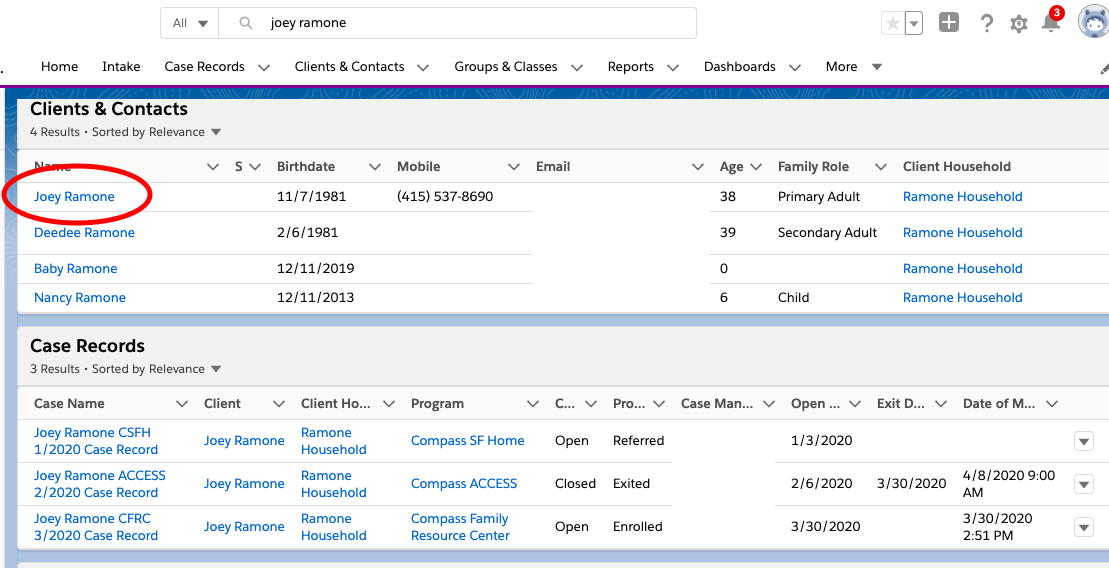
If the client already exists (you see his/her name in the search results), use their existing Client Contact record to begin your screening:
1. Click through to the client's Client Contact record from the list of search results:
2. Click the "Create Referral/Case" button on the top of the page.
3. Select the Program for which you’re completing the screening, then click “Next”.
4. A new intake form will appear for your program. Complete the form by responding to the questions on the screen, starting at the top of your screen and moving to the bottom.
- All intakes will include the same Universal Basic Client Information & Universal Demographic Information sections which collect basic contact, demographic information, and family composition details.
- If you are conducting a new intake for an existing client, some basic and demographic client information will already be filled out. It is important that you review the information to ensure that it is accurate and up to date and make any edits as needed.
-
Each program has different expectations of what information to collect beyond the basic client and demographic sections and each program’s intake record will look different. Most program intakes will include a section to track referral and screening information to help determine your client's needs and eligibility for your program.
5. When finished, click Save.
6. The next screen to appear is your client’s new Case Record.
If it is a client previously unknown to Compass:
If the client does not already exist in the database (you don't find their name in the search results):

1. Start by clicking the Create New Client & Household tab up top.
2. Select the Program for which you’re completing the screening, then click “Next”
3. A new intake form will appear for your program. Complete the form by responding to the questions on the screen, starting at the top of your screen and moving to the bottom.
4. When finished, click Save.
5. The next screen to appear is your client’s new Case Record.
Note about Household: When you screen a client for the first time, CoDa automatically creates a new Household record for that client’s family.
Tip! Before moving on, check out these definitions of the different family roles and family composition fields.