
Whenever you tell CoDa you want to make a new report, the database will ask you which report type you want to use. Choosing a report type is often the most confusing yet most important step in creating a clean report. I hope that the guidelines here can be helpful. If you're new to reports, just read the "Guideline 1" section and move on.
Guideline 1: Keep it as simple as possible
The Impact + Learning team has created specialized Report Types that we recommend using if you aren't sure which report type to use. To find them, when searching for a report type, search the keyword use - this will bring up the report types that we recommend. Case Records with Details (use) is a good one for all things related to your case record. Case Records actually have a lot of fields that give information about its related objects (childcare trackers, service entries, etc.) so even if you need information from those objects, you might still be able to use the case record alone.
To go deeper into case notes or a particular tracker though, you will have to choose the report type with the corresponding object name.

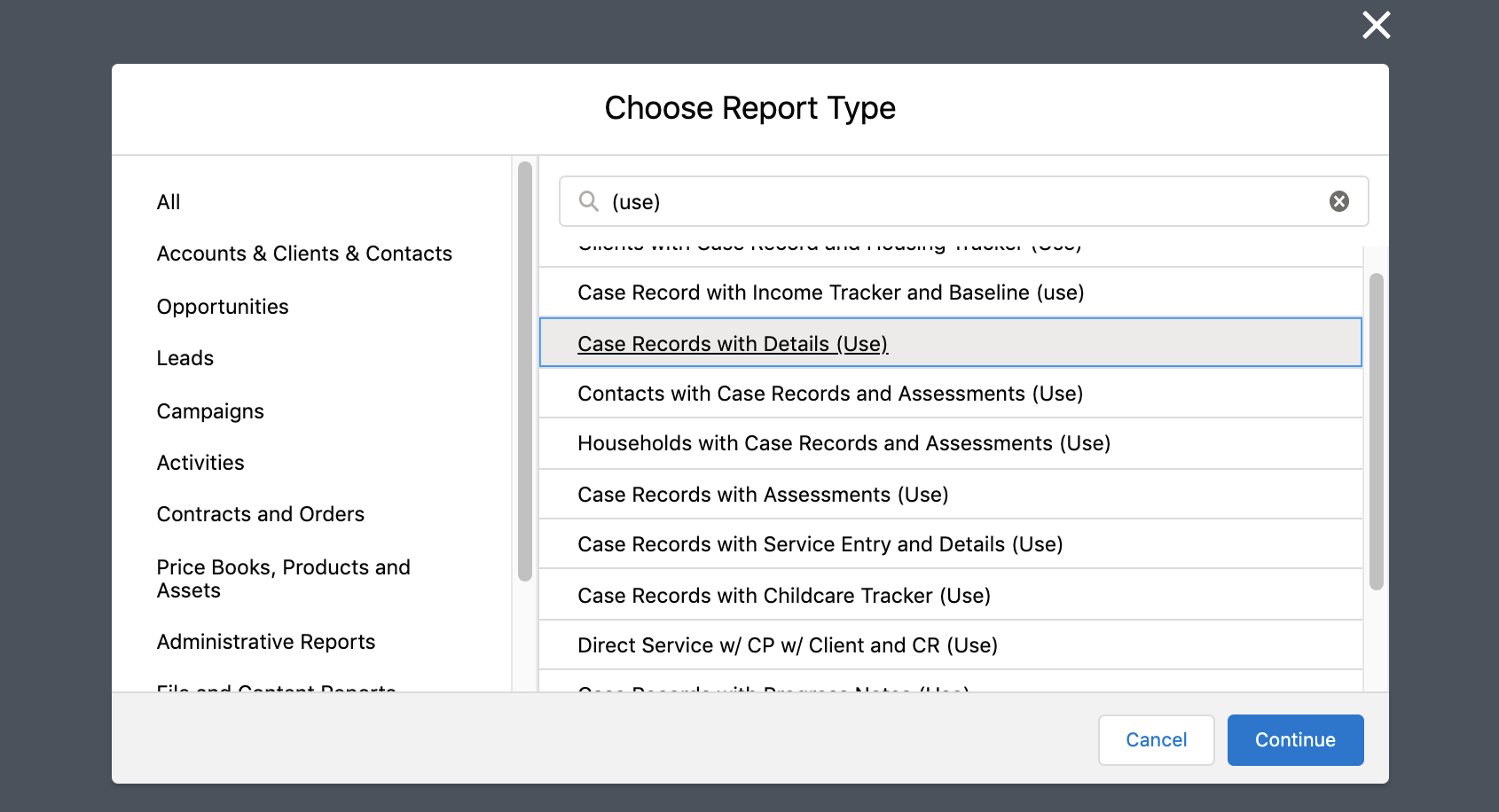
It is important to understand the distinction between custom and standard report types.
- Standard: Created automatically, we have no control over them. New fields are automatically added to them. You know a report type is standard if it has no description.
- Custom: Created by us. We can add fields from related objects, a powerful feature, but new fields are not automatically added. If a field is missing from your report, it may be because it is a new field we haven't added to the report type. You know a report type is custom if it has a description.
Guideline 2: Use Unduplicated IDs to count totals
For every report if you search the word unduplicated in the field search you should see one or more options to add an Unduplicated ID to your columns section. Depending on the report type sometime the names of the fields are different but a general rule of them is:
- If you see a Family Unduplicated ID or Household Unduplicated ID, this will only count once per family member.
- If you see Case Record Unduplicated ID or just Unduplicated ID, it will sum of the number of case records. Note that this may overcount if you have a family who has several case records over time in your program or of you are running an organization wide report where a client may have touched multiple programs
- If you see Client Unduplicated ID, this will generally just count clients with Case Records.
- If you see Participant Unduplicated ID, this will count all family members. This only appears in some report types that bring in detailed household member information
- If you want to count all family members in a general Case Records report, add the field "All Active family members".
Guideline 3: Understand "with" and its alternatives
"With" functionality is to see an objects related objects along with the object. There are two ways you may need "with" and two different tools you should use.
1. If you only want to know which or how many case records have some related object (like a service entry from last month, or a childcare tracker from last quarter):
You're best off using a simple report, like shown in Guideline 1, and using cross filters inside that report. Cross filters are also useful for isolating all the households or individuals with cases in a particular program.
2. If you need the details on the related objects (e.g. the notes, dates, and engagement methods of service entries):
This is when you need a "with" report. Most of the report types we have are actually "with" reports. In them, Salesforce joins data from two objects to appear in a report together. Here is a report based on the standard "Case Records with Service Entries" report type:

This report can show all service entries in the system, but here it is filtered to show only Joey Ramone's. There are two really aspects of such reports to understand:
- The parent object can appear many times. See how Joey's CCP case appears 8+ times? This is not because of duplicates, but because each one of Joey's service entries shows up with the case record information alongside it, so if there are multiple service entries, we see the case record information multiple times. We have to make sure, if we choose to count the case records, to use the unduplicated ID and not the record count
- Parent Objects appear only if they have a related objects. Joey has a lot of other cases that don't appear in this report. That is because there are no service entries on those case records.
You can think about a report of type "X with Y" as simply a report of all "Y" with the information from "X" next to it for convenience and filtering.
Guideline 3: Beware "without" reports
"Without" reports are the most idiosyncratic and difficult to work with reports. They have two main problems:
- You can't easily sort case records into case records with something vs case records without something
- If you add a filter which removes some of the "withs," certain case records will disappear from the report. For example, say you want to see cases with or without progress notes from February. If I have a client who has notes in January and March but not February, when I filter for February, that person will entirely disappear from the report. I may have been under the impression that this report type allowed me to view everyone at once, but that is true only when you're not filtering.
Please avoid and use alternatives when you can:
1. If you're auditing for data quality to make sure every case record has something, e.g an income tracker or an "Intake" Housing Tracker:
You're best off using a simple report, like shown in Guideline 1, and using cross filters inside that report. For "without" cross-filters, only use one subfilter or the result will not be reliable.
2. If you want to compare which clients or cases have vs don't have service entries from a particular time or something similar:
You will need to create a joined report with two parts. One part showing all cases and the other showing only cases with records meeting your criteria, grouping by case. This is not especially difficult but may be overwhelming if you are not familiar with reports.