
Here is an example of how "Request Submitted" notification email looks like
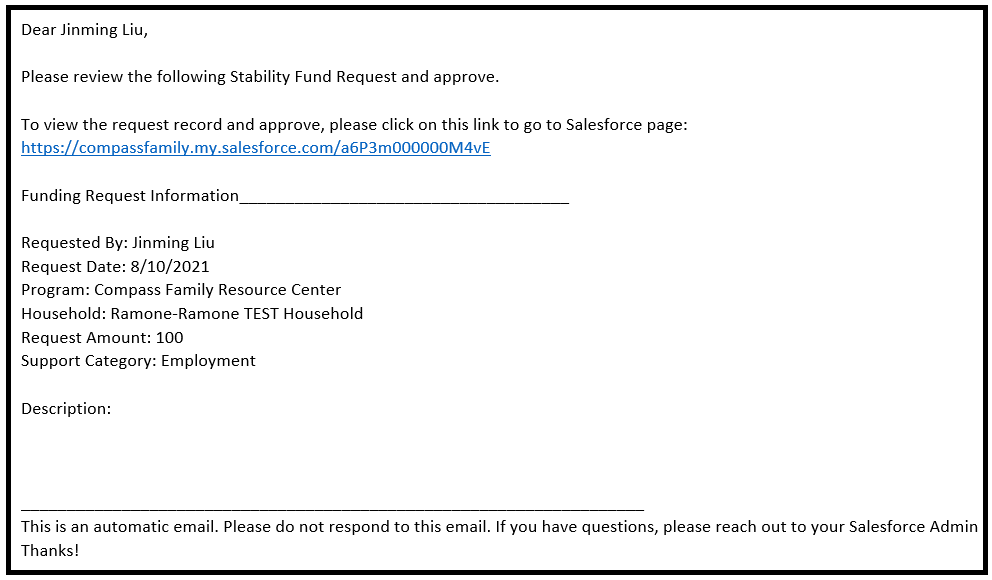
Approver will review the Request details. To approve this request, Approver will click on the hyperlink in Blue, which will take Approver to the Salesforce's Funding Request record. (Approver has to log into Salesforce to view the record and approve)
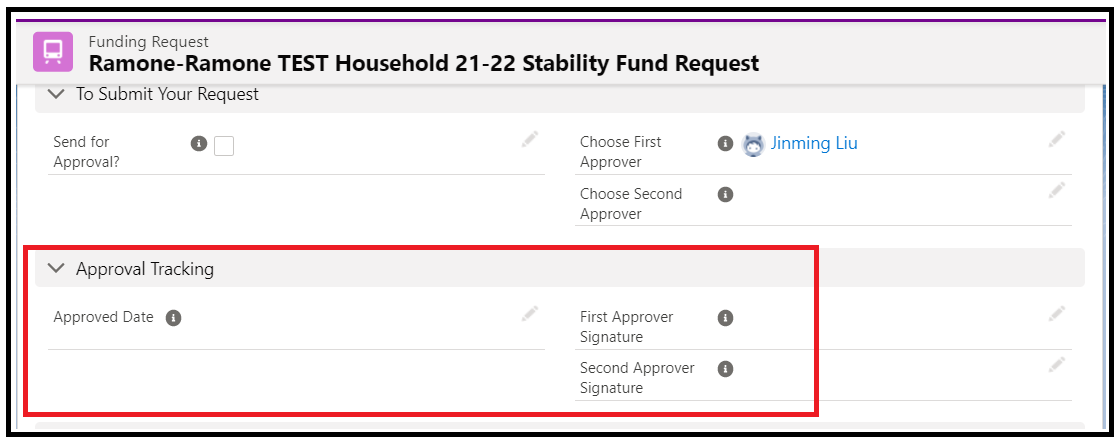
Once in the Funding Record Page, go to Approval Tracking Section, and then fill out
Approved Date: Date you approved this request
First Approver Signature: look up and choose First Approver's name
Second Approver Signature: look up and choose Second Approver's name
Once the requests have been approved:
- Please send a regular check request to finance with all relevant documentation
- Include a screenshot from salesforce showing transaction approved