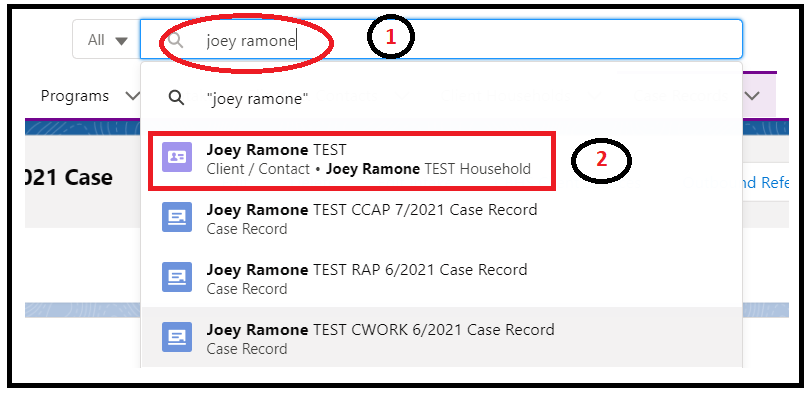
For our demonstration purposes, we're using the client, Joey Ramone Test, and her household to create the request.
1. Search for the Client, in this case: Joey Ramone TEST
1) In Global search box, type: Joey Ramone
2) Click on "Joey Ramone Test" (Client/Contact Object), which takes you to Joey's Client detail page
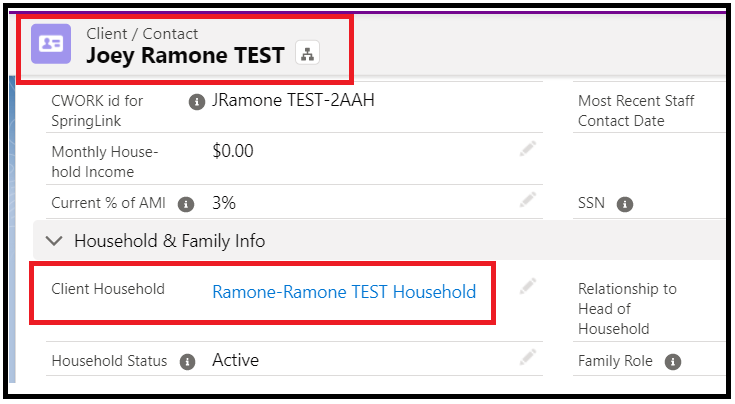
2 From Joey's Client Page, click on her household hyperlink to navigate to the Household page
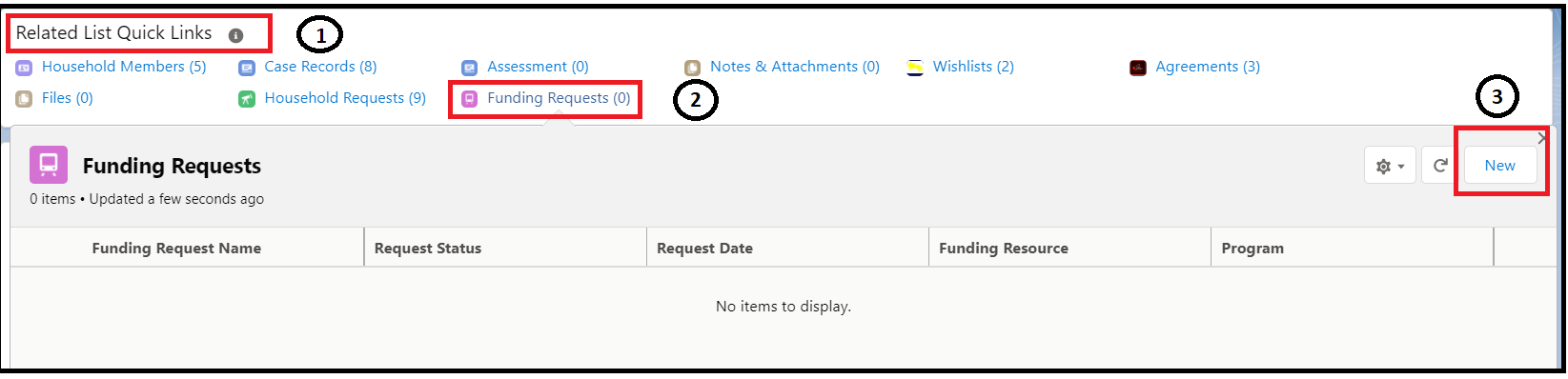
3 Related List Quick Links Section
1) Move your mouse over "Funding Requests" hyperlink in the Related List Quick Links Section
2) From the popped up window, click on "New" to create a Funding Request record
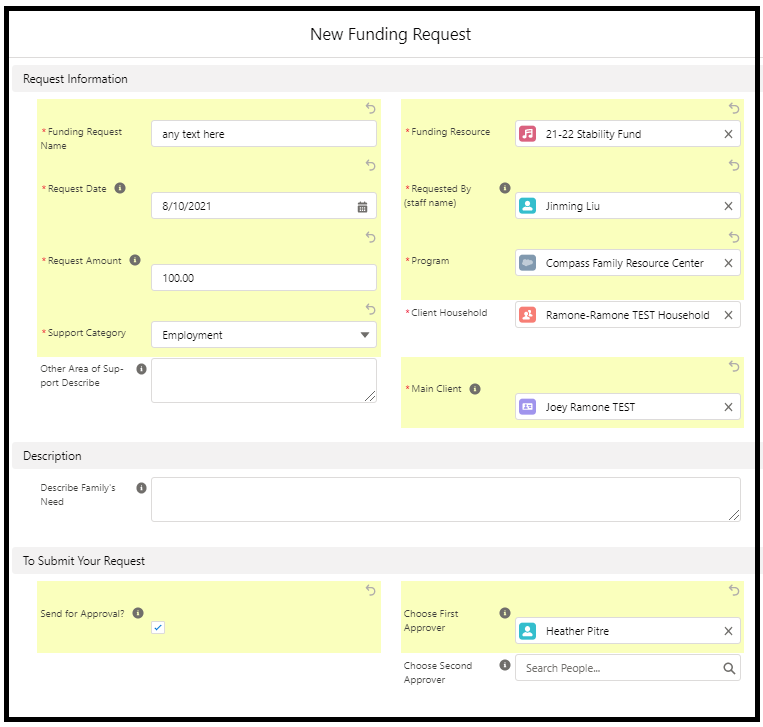
4 Fill out Funding Request details
Funding Request Name: just put any text in here. Upon Save, Salesforce will auto-populate this field.
Funding Resource: Look up "21-22 Stability Fund"
Request Date: Date you created this request, usually Today
Request By: look at your name and select
Request Amount:
Program: Look up your program
Client Household: Client's household, in this case, Joey's household
Main Client: Joey Ramone TEST
Support Category: select a category
Other Area of Support Describe: If you selected "Other" in the "Support Category" field, you need to describe what area of support this request is for.
Describe Family's Need: enter details describing how this funding support help meet family's need.
5 To Submit Your Request Section
Send for Approval?: check this box to submit your approval
Choose First Approver:
if the request amount is less than $250, only First Approver is needed. This is usually your Program Direcotr, in some cases, could be your Assistant Program Director.
Choose Second Approver:
if the request amount is greater than or equal to $250, Second Approver is also required. Second Approver could be Erica, Easter, Susan, Jarekyhe
6 Save
Once you press the Save button. The Request is saved in database. And notification email will be sent to the First Approver and Second Approver(if amount >= 250).