We're going to use Joey Ramone Test client to demonstrate the Laptop Request process in CoDa.
1 Go to Joey Ramone Test client page
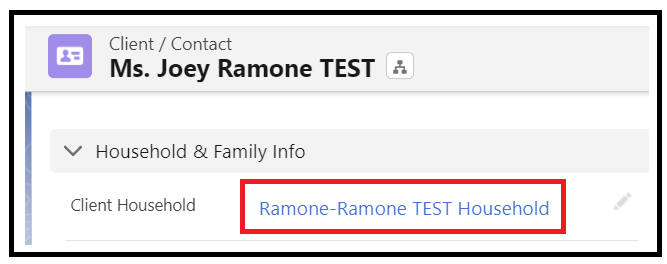
2 Click on the Client Household. This will take you to the Household page.
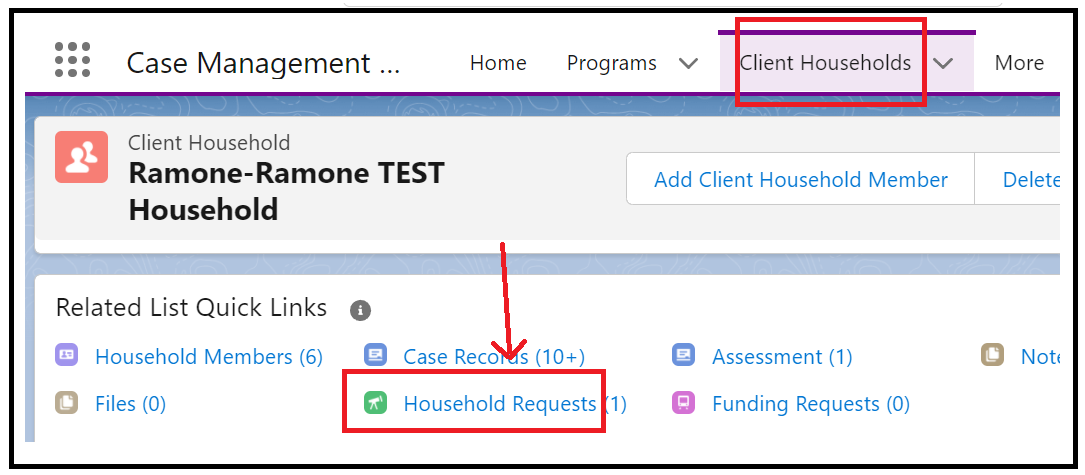
3 From Household page | Related List Quick Links, click on Household Requests.
4 Click on the New button on the upper right corner
5 select record type: Device Request - Client
6 Next
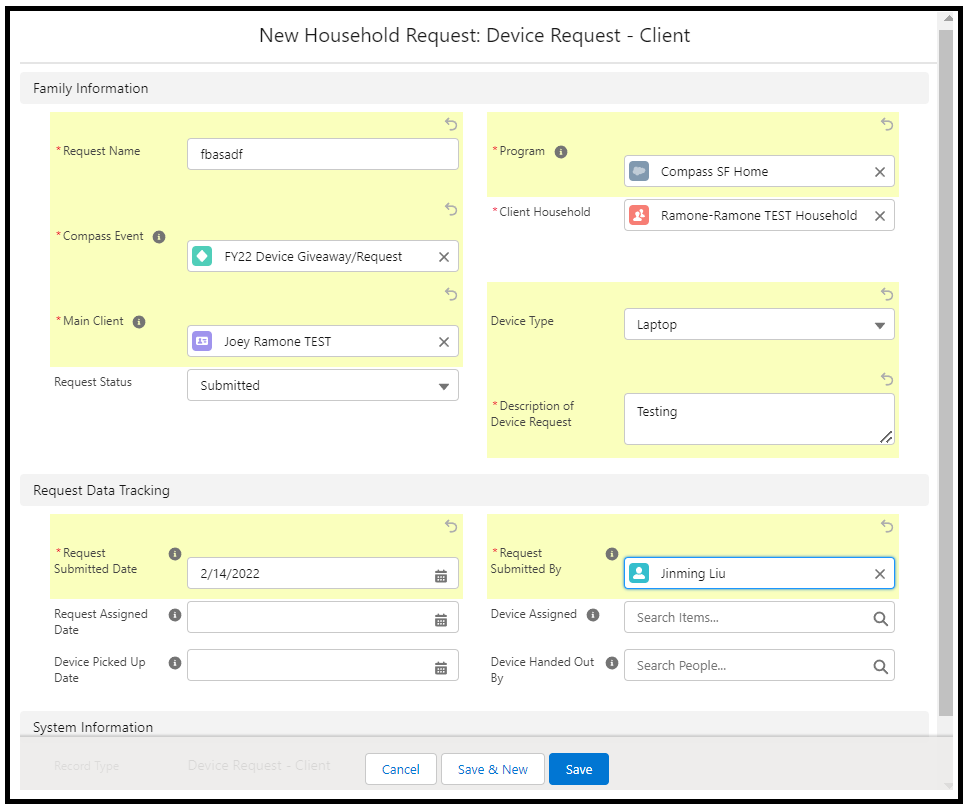
7 Fill out the following fields in the form
- Request Name: just type anything here. Upon saving the record, Salesforce automation will format the name field for you. Just make sure don't leave this field blank because it is a required field.
- Program
- Compass Event: FY22 Device Giveaway/Request (Because at the time of this writing, it's FY22)
- Client Household: (this should've already pre-filled for you)
- Main Client: Joey Ramone Test
- Device Type: Laptop or Tablet
- Request Status: don't change the Status here. Automation will take care of the Request Status.
- Description of Device Request: Required field. Write down detailed description/reason for the request.
- Request Submitted Date: Required
- Request Submitted By: required field. Select your name, and then select your CoDa User account here.
- Save
After your Request is saved, an email will be sent to Andres automatically to notify him about this new Device Request.