The Mogli Notifications Utility Tool
- Location: Bottom Left Corner of the page
Steps to update Mogli Notification Settings
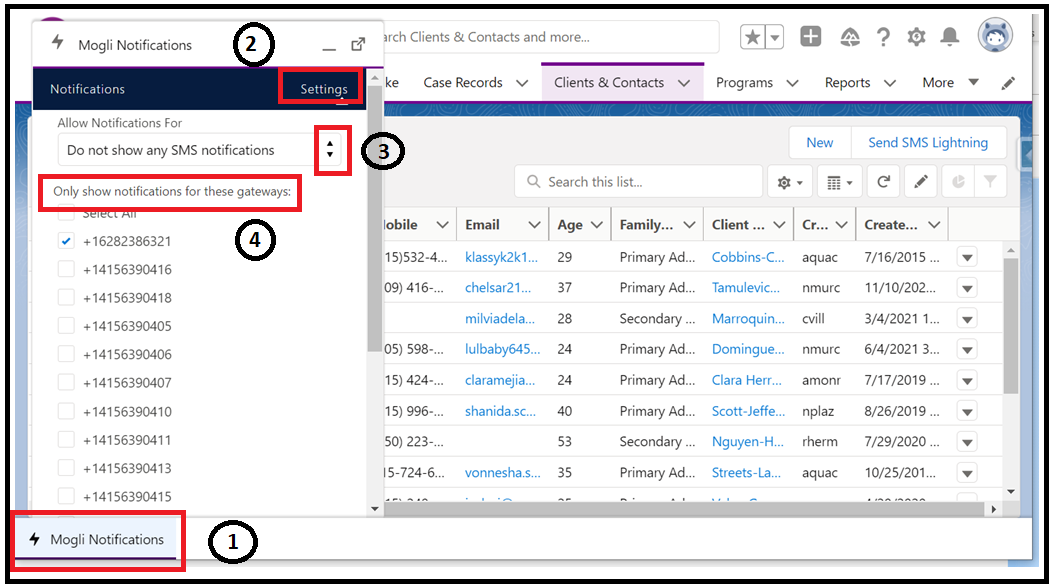
1 Click on "Mogli Notifications" to expand the component
2 Settings
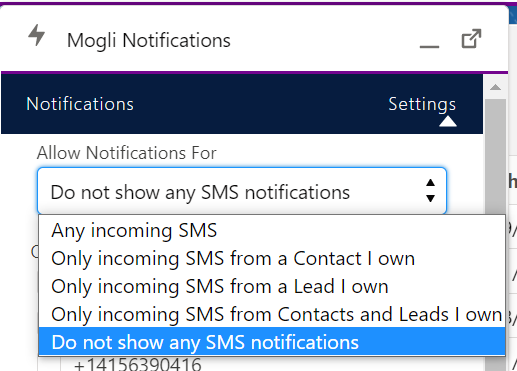
3 Allow Notifications for
Here are the options
- Any incoming SMS: You'll be notified when Any incoming messages texted back to the Assigned gateway you selected on step 4.
- Only incoming SMS from a Contact I own: You'll be notified Only when incoming messages (coming from a Client/Contact you own) texted back to the Assigned gateway you selected on step 4.
- Only incoming SMS from a Lead I own: (Don't apply to Program staff. And if Development don't use the Lead object, don't select this option)
- Only incoming SMS from Contacts and Lead I own: (Don't apply to Program staff. And if Development don't use the Lead object, don't select this option)
- Do not show any SMS notifications: This is the default setting. If you don't update Mogli Notification Settings, you have by default chosen to not receive any notifications.
4 Only show notifications for these gateways: Only select the Gateway number that were assigned to you because you only want to receive notifications about messages texted back to you.
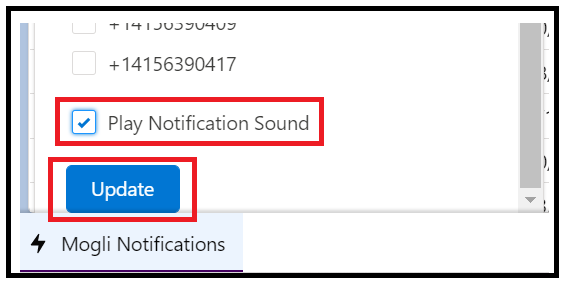
5 Play notification sound and Update
Scroll to the bottom of this component, Check Play notification sound if you want to hear a sound when a message comes in, and then click Update button to save your settings.